
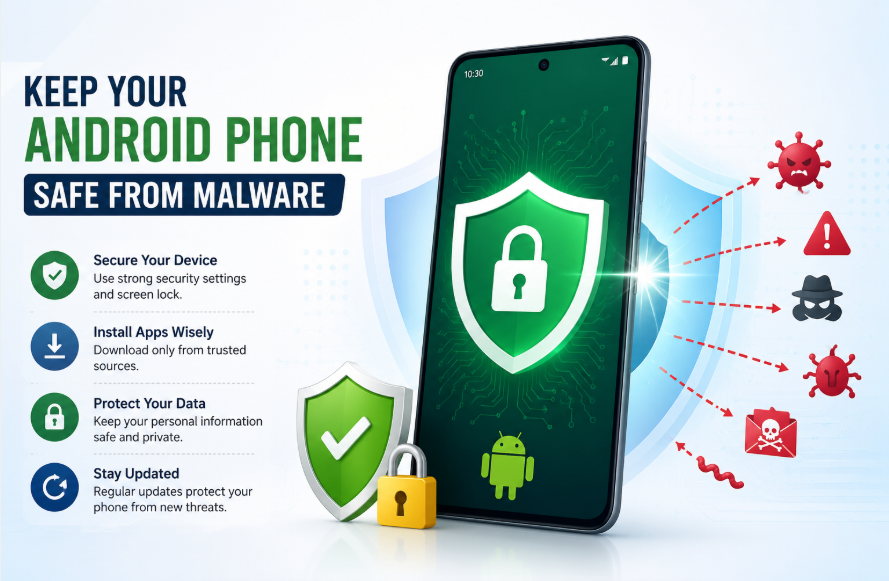
Android smartphones help us stay connected, work online, shop, manage bank accounts, and enjoy entertainment. Because we store so much personal information on our phones, keeping them secure is more important than ever. One of the biggest risks Android users face is malware.
Malware is harmful software designed to steal information, damage your device, or perform unwanted actions without your permission. The good news is that most malware infections can be avoided by following a few simple security habits.
In this guide, you’ll learn what Android malware is, how it spreads, and the best ways to protect your phone.
What Is Android Malware?
Malware is a general term for software that is created to harm devices or users. It can secretly collect personal data, display unwanted ads, slow down your phone, or even give hackers access to your device.
Some common types of Android malware include:
- Spyware that tracks your activity.
- Adware that shows excessive advertisements.
- Ransomware that locks your files.
- Banking malware that targets financial information.
- Trojan apps that appear legitimate but contain harmful code.
Understanding these threats is the first step toward protecting your device.
Keep Your Android System Updated
Software updates are one of the easiest ways to improve your phone’s security. Android updates often include fixes for newly discovered security problems that hackers may try to exploit.
Whenever an update becomes available:
- Install it as soon as possible.
- Keep security patches up to date.
- Restart your phone after major updates if required.
Using an outdated version of Android can leave your device vulnerable to known threats.
Install Apps from Trusted Sources
One of the most common ways malware reaches Android devices is through unsafe applications.
Before installing any app:
- Choose trusted app sources like Apkearner.
- Check the developer’s name.
- Read recent user reviews.
- Look at the number of downloads.
- Avoid apps with very little information or suspicious descriptions.
If an app promises unrealistic features or asks you to ignore security warnings, it’s better to avoid it.
Review App Permissions Carefully
Many apps request access to your camera, microphone, contacts, location, or storage. Some permissions are necessary, but others may not be.
Ask yourself:
- Does a calculator really need access to your contacts?
- Does a wallpaper app need your microphone?
- Does a flashlight app require your location?
If a permission doesn’t match the app’s purpose, think twice before allowing it.
You can also review permissions later in your phone’s settings and remove access whenever necessary.
Enable Google Play Protect
Google Play Protect is a built-in Android security feature that scans apps for harmful behavior.
It can:
- Scan installed apps.
- Warn you about suspicious software.
- Remove harmful applications.
- Check apps regularly in the background.
Keeping this feature enabled adds another layer of protection without requiring extra effort.
Avoid Clicking Suspicious Links
Cybercriminals often use fake messages, emails, and websites to spread malware.
Be cautious if you receive:
- Messages claiming you’ve won a prize.
- Links asking you to verify your account immediately.
- Fake banking notifications.
- Unexpected download links from unknown contacts.
Always verify the sender before opening links or downloading files.
Use Strong Passwords
A strong password helps protect your personal accounts even if someone gains access to your device.
Good password habits include:
- Using long passwords.
- Mixing uppercase and lowercase letters.
- Including numbers and symbols.
- Avoiding birthdays or common words.
- Using different passwords for different accounts.
A password manager can also help create and store secure passwords safely.
Turn On Two-Factor Authentication
Two-factor authentication (2FA) provides an extra level of account security.
After entering your password, you’ll also need a second verification step, such as:
- A verification code.
- An authentication app.
- A security key.
Even if someone learns your password, they won’t easily access your account without the second verification method.
Be Careful with Public Wi-Fi
Free public Wi-Fi is convenient, but it isn’t always secure.
When using public networks:
- Avoid logging into banking apps.
- Don’t enter sensitive passwords.
- Avoid making financial transactions.
- Turn off automatic Wi-Fi connections when you’re finished.
Using trusted mobile data for sensitive activities is often a safer option.
Watch for Unusual Phone Behavior
Malware often causes noticeable changes in how your phone works.
Possible warning signs include:
- Fast battery drain.
- Slow performance.
- Frequent crashes.
- Random advertisements.
- Unknown apps appearing.
- High data usage.
- Phone overheating without heavy use.
If you notice several of these problems together, review recently installed apps and run a security scan.
Back Up Your Important Data
Regular backups help protect your information if something goes wrong.
Consider backing up:
- Photos.
- Videos.
- Contacts.
- Documents.
- Important messages.
Cloud storage or an external backup solution can help you recover your files if your device is lost, damaged, or infected.
Remove Apps You No Longer Use
Unused apps can become security risks if they are outdated or abandoned by developers.
Every few months:
- Delete apps you no longer need.
- Remove games you haven’t played in a long time.
- Uninstall apps that no longer receive updates.
Keeping fewer apps installed reduces your overall security risk.
Use Built-In Security Features
Modern Android phones include several security tools that are easy to enable.
These include:
- Screen lock with PIN or password.
- Fingerprint unlock.
- Face unlock.
- Device encryption.
- Find My Device.
Using these features makes it much harder for someone to access your personal information if your phone is lost or stolen.
Stay Informed About New Threats
Cybersecurity changes constantly. New scams and malware appear every year.
Make it a habit to:
- Read trusted technology news.
- Learn about common online scams.
- Share security tips with family members.
- Stay alert to new phishing techniques.
A little knowledge can prevent many security problems.
Final Thoughts
Keeping your Android phone safe from malware doesn’t require advanced technical skills. Simple habits like updating your device, reviewing app permissions, avoiding suspicious links, and using strong passwords can greatly reduce your risk.
Your smartphone holds valuable personal information, so taking a few minutes to improve its security is well worth the effort. By staying cautious and following these best practices, you can enjoy a safer Android experience and better protect your privacy every day.